WINDOWS
-
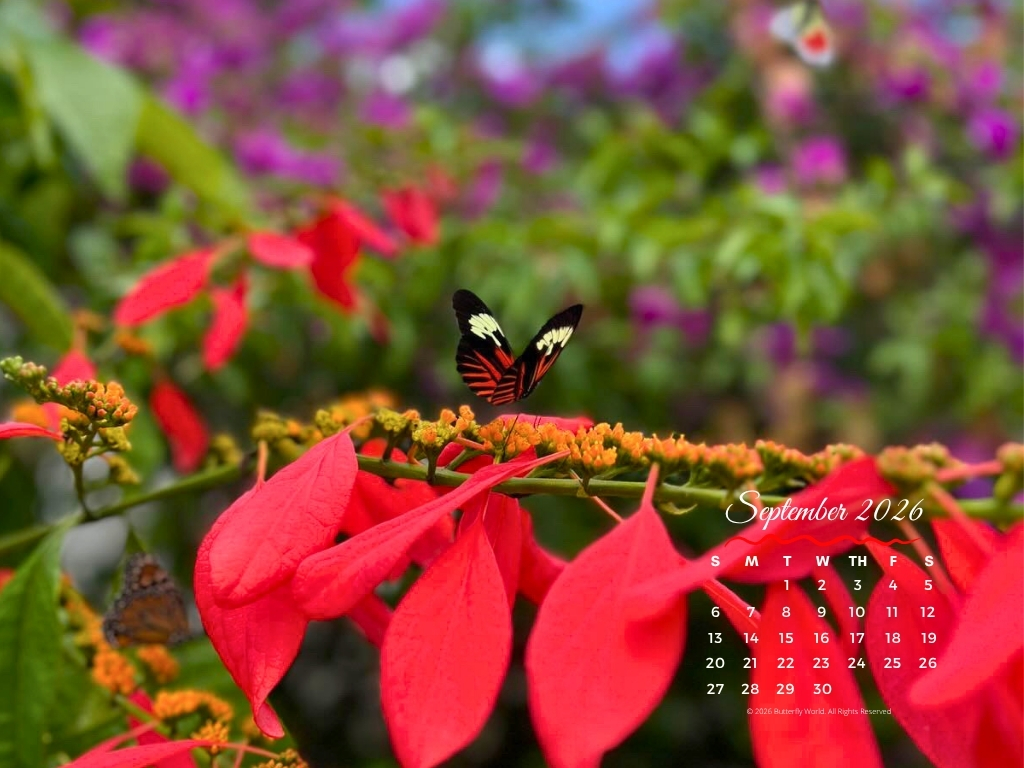
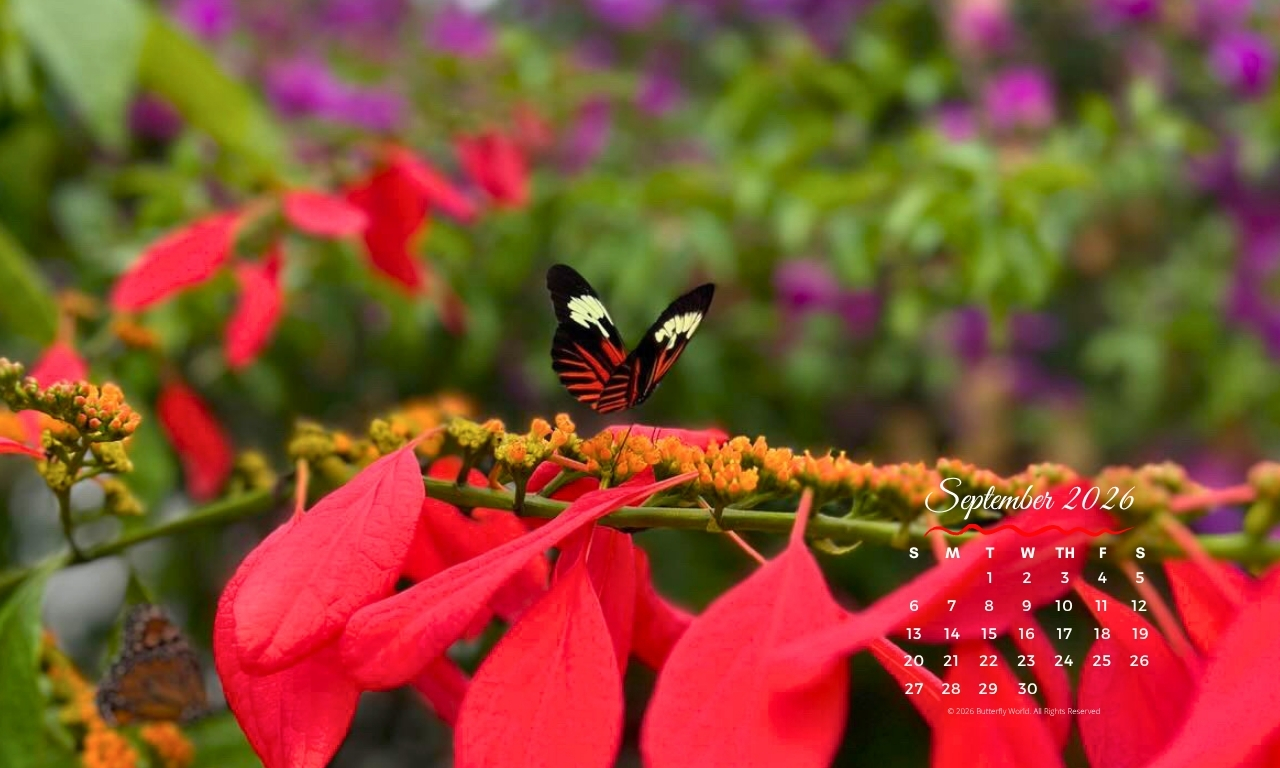
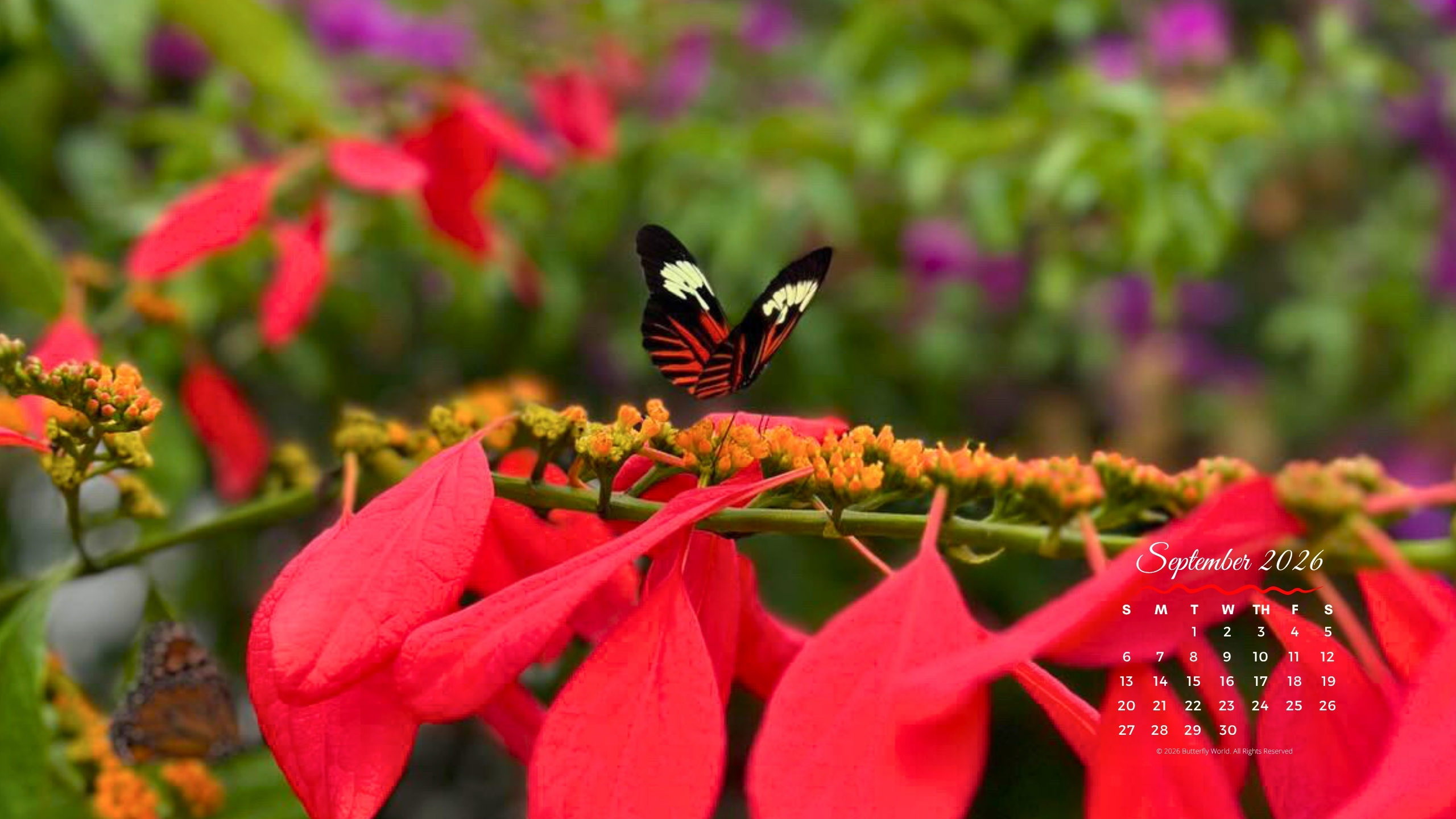
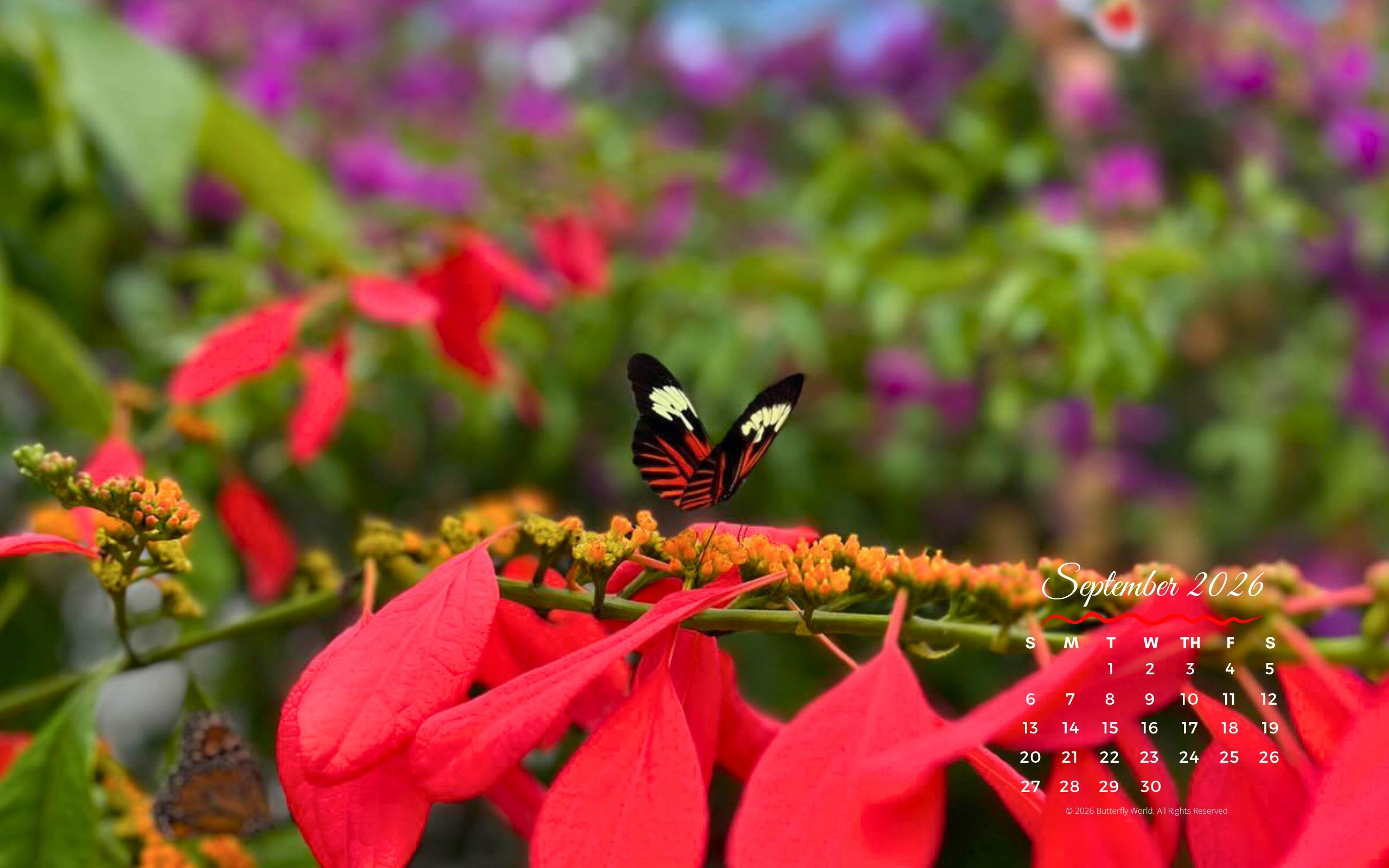
Choose Your Image: Click on the image you want to use for your desktop background. Make sure to select the resolution that matches your screen display.
- Find Your Screen Resolution:
-
Right-click on your desktop and select Display settings.
-
Scroll down to the Display resolution section to see your current resolution. Aim for a resolution matching or exceeding the image’s dimensions.
-
Check your color settings under Color settings (Windows typically defaults to 32-bit).
-
- Set as Background:
-
Right-click the selected image and choose Set as desktop background.
-
MAC OS
-
Choose Your Image: Click on the image that suits your screen resolution.
- Save the Image:
-
Control-click (or right-click) on the image and select Save Image As to save it to your hard drive.
-
- Set as Background:
-
Open System Preferences and select Desktop & Screen Saver.
-
Click on the Desktop tab, then click the + button (or Select Folder) to find the saved image.
-
Select your image, and it will automatically set as your desktop background.
-
Enjoy your new desktop background!
September 2026

Some sizes have been updated. If you need a different size, please email gardens@butterflyworld.com—we would be happy to add it. Thank you!